





M365
Jump To: Support > KB > Backup > M365
Backing up Microsoft 365 with Remote Safeguard
Permissions within Azure/Entra ID
- Log onto Microsoft Entra admin center as an administrator
- Go to App registrations
- Click on + New registration
- Enter name, e.g. Precedence Remote Safeguard
- Set account type to be Single tenant only - <your account name>
- You may leave Redirect URI empty
- Click Register
- When viewing the newly-created app, note the Application (client) ID - you can copy to the clipboard:
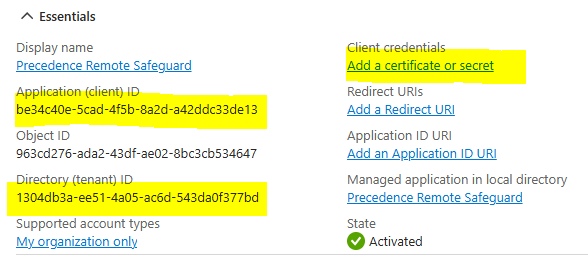
- Note the Directory (tenant) ID
- In the Client credentials section, click Add a certificate or secret
- Click New client secret and the Add a client secret will slide in from the right:
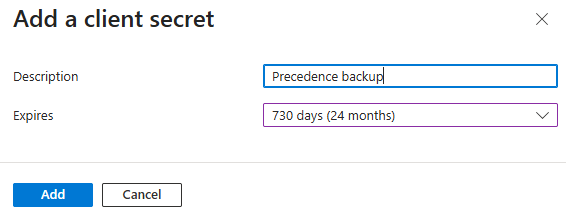
- Set Description to Precedence backup. Set Expires to 730 days (24 months). Click Add
- You MUST copy the value of the client secret as you will not be able to view it afterwards (not the client secret ID)
- Go to Manage > API permissions
- Click + Add a permission
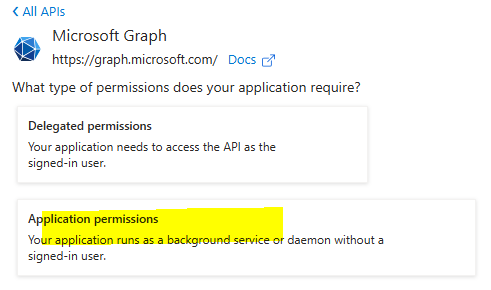
- Select Microsoft Graph
- Select Application permissions (not Delegated permissions):
- Select the following permissions. You can use the filter box to find them:
Files.ReadWrite.All(orFiles.Read.Allif you don't want to restore in place):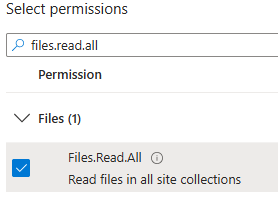
User.Read.All: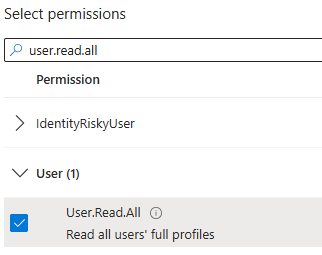
Sites.Read.All: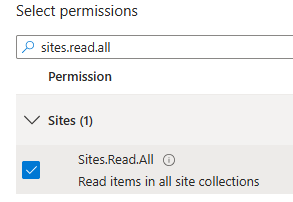
- Click Add permissions
- Click on Grant admin consent for <your account name> and then Yes to confirm