

Step 4
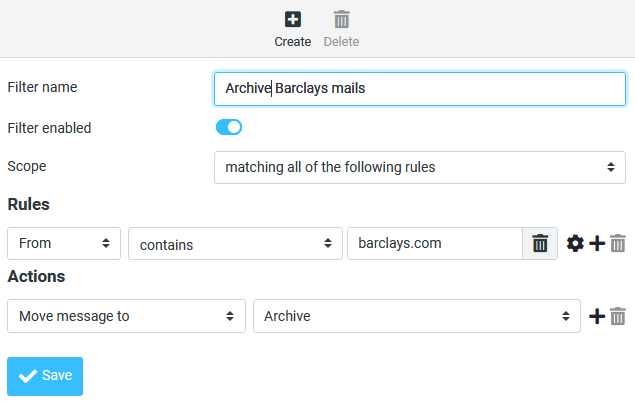
- Give your filter a name using the Filter name box
- You can enable and disable filters using the Filter enabled toggle
- The Scope option allows to specify how multiple rules should be combined, e.g. if actions should only be taken if all rules match or if just one is sufficient
- You can define rules based on virtually any part of an email (e.g. you could reject emails containing certain words). Use the + button to add another rule
- Pick the action(s) you want to take if a message matches the rule(s)
- Click Save when you have finished
For example, here is a filter that will move any emails from barclays.com to a folder called Archive